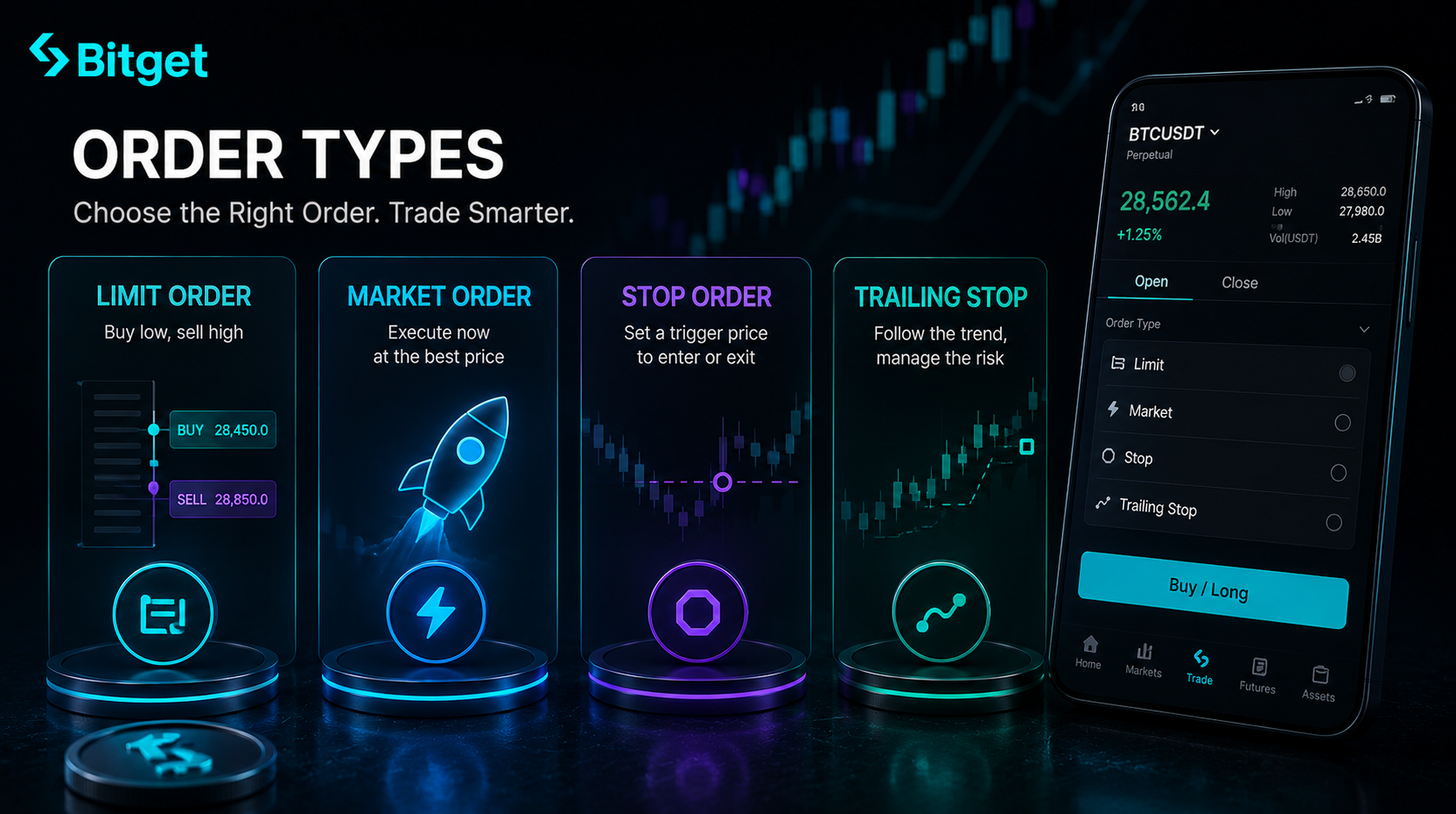
The single biggest reason new traders lose money on BitGet isn’t bad coin picks. It’s that they only ever press one button. Market buy. Market sell. Market buy. And then they wonder why their PnL looks like a slow puncture.
The order type menu on BitGet has eight options. Most beginners use one. The other seven are how experienced traders cut fees, lock in profit, and sleep at night with positions open. This is the post I wish someone had handed me before I placed my first trade six years ago.
Short answer: BitGet supports market, limit, stop-limit, stop-market, OCO (One-Cancels-Other), trailing stop, take-profit / stop-loss conditional orders, and post-only orders. Use limit orders for entries to save fees, stop-limit for protection, OCO when you want a defined risk-reward setup, and trailing stops to lock in gains as price runs. Time-in-force settings (GTC, IOC, FOK) control how long an order stays live.
Open a BitGet account → (affiliate) — every order type in this post is on the standard interface.
Key takeaways
- Market orders fill instantly but pay taker fees (0.10% on BitGet spot) and can slip badly on thin books.
- Limit orders pay maker fees (0.10% spot, 0.02% futures) and let you set the exact price you want.
- Stop-limit is the order that should be on every futures position you open — set it before you enter.
- Trailing stops are how you let winners run without giving back gains. They are not for choppy markets.
- OCO pairs a take-profit and a stop-loss into one order so you only need to be right about direction.
Why order types matter (the stop-loss everyone forgets)
According to a 2024 Bitwise retail trading survey cited by CoinDesk, roughly 75% of retail crypto traders place positions without a pre-set stop-loss. That’s the single biggest reason most retail accounts blow up in their first year. The 2022 cycle didn’t kill traders because the market crashed. It killed them because they had no exit defined and they froze.
Order types are how you remove the freeze. You decide the rules when you’re calm. The exchange enforces them when you’re not.
On BitGet specifically, the order menu sits right above the buy/sell buttons on every spot and futures pair. It is one click. It costs nothing. And the difference between a trader who uses it and one who doesn’t is usually the difference between still trading next year and not.
A few real numbers before I get into each type. BitGet’s spot order book on BTC/USDT carries over $1.2 billion in daily volume according to CoinGecko exchange data. That depth means most order types fill cleanly. On lower-cap altcoins with $50k–$500k books, the order type you choose matters far more than on BTC — slippage on a market order in a thin book can eat 2–3% on its own.
The cost of using only market orders
Quick maths. Say you make 200 round-trip trades a year, average position size $1,000. With market orders you pay 0.10% taker on each side — that’s $400 in fees a year. With limit orders earning the maker fee (also 0.10% on BitGet regular tier, but free or rebated at higher tiers and on most major exchanges’ promos) you keep the spread on your side instead of paying it. Multiply that across futures (0.02% maker vs 0.06% taker) and the gap gets brutal: $80 maker vs $240 taker on the same 200 trades. Three times more.
That’s three months of dinners, paid to the exchange because you couldn’t be bothered to set a price.
Market order — when (and when not)
A market order says: fill me at whatever the next available price is, right now. You give up control over the price in exchange for certainty of execution.
When market orders make sense
- You’re getting out of a losing position fast. Capital preservation beats fee optimisation.
- You’re trading a deep, liquid pair (BTC, ETH, SOL, top-20 alts) where slippage is negligible.
- You’re entering a fast move and the next 0.1% of price action matters more than the maker fee.
When market orders cost you money
- Low liquidity pairs. New listings, mid-cap alts under $50M market cap. The book can be 1–2% deep before it gets thick again.
- Large orders. A $50k market order on a $200k bid will walk down the book and you’ll average a much worse price than the top quote.
- Off-hours trading. Asian session midweek 3am UTC tends to have the thinnest spreads. Market orders hurt more then.
On BitGet, market orders on BTC/USDT spot typically fill within 0.01% of the top quote. On a brand-new Launchpad listing, I’ve seen the same order eat 4% of slippage on the same dollar amount.
How I use market orders
Almost never on entry. Almost always on emergency exit. If a trade is going wrong and I need out, I market sell. If I’m bored and clicking around, I limit.
That habit alone saves me roughly £400–600 a year in avoidable taker fees, based on my own trade logs.
Limit order — the workhorse
This is the order that should be your default. A limit order says: only fill me at this price or better.
How it works on BitGet
You open the trade panel, click Limit, type in the price you want, type in the size. Click buy. If price comes to you, the order fills. If it doesn’t, it sits in the book until you cancel or it expires (see TIF settings below).
You pay the maker fee instead of the taker fee when your limit order rests on the book and gets filled by someone else’s market order. On BitGet spot at the regular tier, that’s still 0.10% on both sides — but climb the VIP tier and the maker side drops fast. On futures the regular tier is 0.02% maker vs 0.06% taker, which is a 3x cost gap from the start.
When limit orders are the wrong choice
- You urgently need to enter or exit. A limit order can miss if price runs away.
- You’re trying to catch the exact local low or high. You won’t. Set your limit slightly above the wick zone for buys, slightly below for sells.
Real example
Last month I wanted to add to my ETH bag. Spot price was hovering at $3,150. I knew there was support at $3,080 from the prior daily close. I set a limit buy at $3,082, waited 36 hours, got filled on a Tuesday wick. Same trade as a market order at the time of decision would have cost me $68 per ETH more.
Multiply that across the size of the position and you’re talking real money. That’s the bit beginners miss — patience is a fee discount.
For the deeper walkthrough on spot order placement, the BitGet spot trading guide covers the panel screen by screen.
Stop-limit order — protecting positions
A stop-limit is two prices stitched together. You set a trigger price (the stop) and a limit price. When the market touches the trigger, the exchange places a limit order at your limit price.
It’s how you set a stop loss without panicking.
The classic use case
You’re long BTC at $66,000. Your invalidation level is $64,000 — if price closes below there your thesis is wrong. You set a stop-limit:
- Trigger: $64,050
- Limit: $63,950
If price falls to $64,050, the exchange fires a limit sell at $63,950. You get filled inside that range unless the market gaps right through it.
The trap with stop-limits
If price drops violently — say a flash crash or a black swan event — the limit price might not fill because the market is already trading way below it. You wanted out at $63,950 and the next print is $62,000. Your stop never executes and you ride the move down.
For that reason, in fast markets I sometimes use a stop-market instead (next section). The trade-off is slippage vs guaranteed execution.
Where to place the stop
A few rules I follow:
- Below structural support. Not on it. Smart money clusters stops on obvious levels and runs them.
- At your invalidation, not your pain tolerance. Your stop should be where the chart says you’re wrong, not where the dollar amount makes you flinch.
- Wider than the average daily range. If BTC moves 2% a day, a 1% stop loss will get hit on noise, not on direction.
Investopedia has a clean explainer of stop-loss order mechanics if you want the textbook version.
Stop-market vs stop-limit on BitGet
BitGet supports both. Stop-market triggers a market order at your trigger price — guaranteed fill, variable price. Stop-limit triggers a limit order — guaranteed price, possible no-fill.
Use stop-market when you need out fast. Use stop-limit when you want to control the price but accept the risk of the market gapping through.
Trailing stop — locking in gains
A trailing stop follows the price as it moves in your favour. Set the trail distance (a % or a dollar amount), and the stop level updates upward (on longs) every time price makes a new high. When price reverses by your trail distance, the stop fires.
Why this is the trader’s best friend
You catch a real move. Without a trailing stop you have to decide manually when to take profit. You’ll either close too early (and watch it run another 30%) or hold too long (and watch it round-trip). A trailing stop removes the decision.
Example
Long ETH at $3,200. Set a 5% trailing stop. ETH runs to $3,800 — your stop is now sitting at $3,610 (5% below the high). ETH pulls back. At $3,610 your stop fires. You banked $410 per coin instead of watching the trade close at $3,200 break-even on a deeper retrace.
When trailing stops are wrong
In chop. If price is range-bound between $3,150 and $3,250, a 5% trail does nothing for you. You set it, price wiggles, the trail follows up by nothing, and you give back the round trip every time.
Trailing stops are for trending markets. Use them once a clear breakout is established, not from the entry.
How to set on BitGet
Spot order panel → Trailing Stop → set activation price (where the trail starts following), set trail distance, set size. BitGet’s UI lets you set the trail as either a percentage or a USDT amount. I always use percentage — it scales with price.
OCO (One-Cancels-Other) order
OCO is the order type that turns you from a gambler into a planner. It bundles a take-profit and a stop-loss into a single order. When one fills, the other cancels automatically.
Why this matters
You don’t have to babysit the trade. You set both ends of the range when you enter, and the exchange manages the exit. This is exactly how a futures setup should look — defined risk, defined reward, no decision required while the trade is open.
Setting up an OCO on BitGet
- Open the order panel on your chosen pair.
- Click OCO from the order type dropdown.
- Set your take-profit price (where you want to bank gains).
- Set your stop-loss trigger and limit prices.
- Set the size and click Confirm.
When either price hits, the other order cancels. Clean, simple, no manual intervention.
Real example
Buying SOL at $180 with a target of $210 and a stop at $172. That’s a $30 reward against an $8 risk — a 3.75:1 R:R ratio. I set the OCO when I open the position. If SOL hits $210 first, the limit sell fires and the stop cancels. If SOL drops to $172, the stop fires and the take-profit cancels. I don’t watch either way.
The discipline of setting both ends at entry is what separates traders from gamblers. According to a Reuters report on retail trading behaviour, about 80% of retail derivative traders lose money over a 12-month window — most of them because they had no exit plan when they entered.
Take-profit + stop-loss combo
Distinct from OCO on BitGet’s interface. The TP/SL combo lives inside the entry order itself. When you place a limit or market buy, you can tick a box to attach a take-profit price and a stop-loss price right there.
Why use this over OCO
OCO is two conditional orders after you’re in the position. TP/SL on entry attaches the exits as part of the entry order. Smaller cognitive load, fewer clicks, same outcome.
I use it on every futures position I open. Every single one. No exception.
How to set on BitGet futures
Open the futures panel. Place your entry order (market or limit). Before clicking Buy/Sell, click the “TP/SL” toggle. Enter your take-profit trigger price and your stop-loss trigger price. Place the order. Done.
When the entry fills, the exit orders are automatically attached. You can edit them later if you want to move your stop up as the trade goes your way.
Time-in-force settings (GTC, IOC, FOK) explained
This is the bit nobody covers. The TIF dropdown controls how long your order stays alive.
GTC — Good Till Cancelled
Default on most exchanges. Your order stays in the book until it fills or you cancel. BitGet lets GTC orders sit indefinitely.
Use case: every normal limit order you ever place. Sit and wait.
IOC — Immediate Or Cancel
The order tries to fill immediately at your price. Any portion that doesn’t fill cancels. You don’t sit in the book.
Use case: large orders where you don’t want to leak your intent. If only 30% fills, the rest cancels and you can decide whether to chase or wait.
FOK — Fill Or Kill
All or nothing. The entire order fills immediately at your price, or none of it does and the order cancels.
Use case: I rarely use FOK on BitGet. It’s more relevant for institutional traders running algos. For retail size, IOC achieves the same thing without leaving partial fills on the table.
Post-Only
Worth flagging separately. Post-only ensures your order only enters the book as a maker (i.e., it never crosses the spread and gets filled as a taker). If the order would fill as a taker on entry, it cancels.
Use this to guarantee you pay maker fees, not taker fees. Especially valuable on futures where the spread between the two is 3x.
The order types I actually use (with the % split)
Over the last six months of trade logs, here’s the rough breakdown of my order use on BitGet:
| Order type | % of trades | Where I use it |
|---|---|---|
| Limit | 55% | All planned entries, all planned exits |
| Stop-limit / stop-market | 20% | Risk management on every position |
| OCO | 12% | Defined R:R setups, especially scalps |
| TP/SL on entry | 8% | Every futures position |
| Market | 4% | Emergency exits, news-driven entries |
| Trailing stop | 1% | Trending markets only, big moves |
Notice market is 4%. The biggest percentage by far is limit. That’s not because I’m slow — it’s because I plan trades before I take them. The order type follows the plan.
For deeper feature use, the BitGet futures USDT-M guide and BitGet leverage explained cover the futures-specific order setup. If you’re trading margin instead, BitGet margin trading walks through cross vs isolated.
Where to learn proper order discipline
Order types are mechanics. The discipline of when to use which one is the actual skill, and that takes reps. You can read every post on this site and still place bad orders because the screen is moving and you’re scared.
The community I’m part of for this is Trade Travel Chill (affiliate). It’s a paid trader community with live sessions, structured education, and a desk culture that makes you actually use stop losses instead of just reading about them. I’m not pitching — it’s the one structured education source I trust because it’s the one I use.
For the wider list of options, I covered them in the best crypto trading courses round-up.
If you trade from public networks at all (cafes, hotels, airports), use a VPN. I run NordVPN on every device I trade from. Account takeovers happen on public WiFi — order discipline doesn’t help if someone is rerouting your session.
Want to try these on a live account?
Open a BitGet account, deposit a small amount, and practise each order type on BTC/USDT spot. Costs a few cents in fees. Pays for itself within a week.
Affiliate link. I may earn a commission at no extra cost to you.
Common order mistakes
Six years of watching this:
Setting the stop at a round number
Every trader sets their BTC stop at $65,000. So the market wicks to $64,900, hits everyone, and reverses. Don’t put your stop at the obvious level. Put it 0.3–0.5% below it.
Using market orders on thin pairs
Mid-cap altcoin with a $300k order book? A $20k market order will eat 1.5% in slippage easily. Always limit on anything outside the top 20.
Setting TP/SL too tight
If your stop is 0.5% away from entry and BTC moves 0.5% a minute, you’ll get stopped by noise. Match your stop distance to the asset’s volatility, not to your account size.
Forgetting GTC orders exist
I’ve had limit orders sit in the book for two weeks because I forgot I placed them, then fill at a price I no longer want. Check your open orders weekly. Cancel anything that doesn’t match your current view.
Confusing trigger price with limit price on stop-limits
Easy to do. The trigger is where the order activates. The limit is where it tries to fill. Set them too far apart and you’ll never get a fill. Set them too close and a fast market will skip past both.
Not using post-only on futures
If you’re a maker by strategy, post-only guarantees you stay a maker. Without it, a fast price move can flip your limit into a taker fill and triple your fee. Tick the box.
Treating OCO as set-and-forget
OCO is great, but markets change. If your stop or target no longer make sense (news, structural break, new range), cancel the OCO and replace it. The order doesn’t think for you.
Using trailing stops in chop
Mentioned earlier but worth saying twice. A 5% trail in a 1% range will exit you on noise. Trailing stops belong in trending markets only.
How BitGet’s order types compare to other exchanges
For context against the rest of the market:
| Order type | BitGet | Binance | Bybit | Coinbase |
|---|---|---|---|---|
| Market | Yes | Yes | Yes | Yes |
| Limit | Yes | Yes | Yes | Yes |
| Stop-limit | Yes | Yes | Yes | Yes |
| Stop-market | Yes | Yes | Yes | No |
| OCO | Yes | Yes | Yes | No |
| Trailing stop | Yes | Yes | Yes | No |
| TP/SL on entry | Yes | Yes | Yes | Limited |
| Post-only | Yes | Yes | Yes | Yes |
Coinbase Advanced has narrowed the gap but the institutional-grade exchanges (BitGet, Binance, Bybit) still have a meaningful edge on order type variety.
Full head-to-heads: BitGet vs Binance · BitGet vs Bybit · BitGet vs OKX.
Order types in BitGet trading bots
A quick note for anyone running the BitGet spot grid bot or the BTC/USDT spot bot: bots use limit orders by default. Every grid level is a resting limit. That’s why bots earn maker fees and run lean on cost — they almost never take liquidity.
If you’re new to bots, start with the crypto trading bots guide before you deploy anything.
Ready to trade properly?
Every order type in this post is available on BitGet from the standard interface. Open an account and start using stop-losses today.
Affiliate link.
Frequently asked questions
What is the best order type for beginners on BitGet?
Limit orders. They give you price control, pay the lower fee, and force you to plan the trade before you place it. Avoid market orders until you understand slippage. Avoid stop-limit until you understand the trigger vs limit price distinction.
How do I set a stop loss on BitGet?
Open the trade panel on your pair, select Stop-Limit or Stop-Market from the order type dropdown, enter your trigger price (where the stop activates) and limit price (for stop-limit only), set the size, and confirm. The order sits hidden until the trigger price is touched.
What is the difference between stop-limit and stop-market?
Stop-limit triggers a limit order at your specified price — guaranteed price, possible no-fill if the market moves through. Stop-market triggers a market order — guaranteed fill, variable price. Use stop-market in fast markets, stop-limit when you control your fill price.
Does BitGet support OCO orders?
Yes. OCO (One-Cancels-Other) is available on both spot and futures. You set a take-profit price and a stop-loss price as a single order. When one executes, the other automatically cancels.
What does GTC mean on BitGet?
GTC stands for Good Till Cancelled. Your order stays active in the order book until it fills or you manually cancel it. This is the default time-in-force setting for limit orders.
Can I set a trailing stop on BitGet spot trading?
Yes. The trailing stop order type is available on spot and futures pairs. Set the activation price (where the trail starts) and the trail distance (as a percentage or a USDT amount). The stop follows price upward on longs and triggers when price reverses by your trail distance.
What is post-only on BitGet?
Post-only is a flag on limit orders that ensures the order only enters the book as a maker. If filling the order would require taker liquidity, the order cancels instead. Use it to guarantee maker fees, especially on futures where maker vs taker fee gaps are large.
Why didn’t my BitGet stop-limit fill?
Most likely because the market gapped through your limit price. Stop-limit only fills at your limit price or better. In fast markets, prices can jump past your limit and leave the order unfilled. If you need guaranteed exit, use stop-market instead.
Final word
Order types are the cheapest skill to learn and the most expensive one to skip. Every trader who survives long enough ends up using all of them — not because they’re advanced, but because each one solves a problem that hurts when you ignore it.
If you take one thing from this post: never open a position without setting a stop. Use stop-limit when you can, stop-market when you must, OCO when you have a clear target. The exchange will execute the rules you set when you’re calm. That’s the entire point.
Right — over to you.
Related posts
- BitGet Spot Trading: Complete Guide
- BitGet Futures Trading: USDT-M Perpetuals Explained
- BitGet Leverage Explained