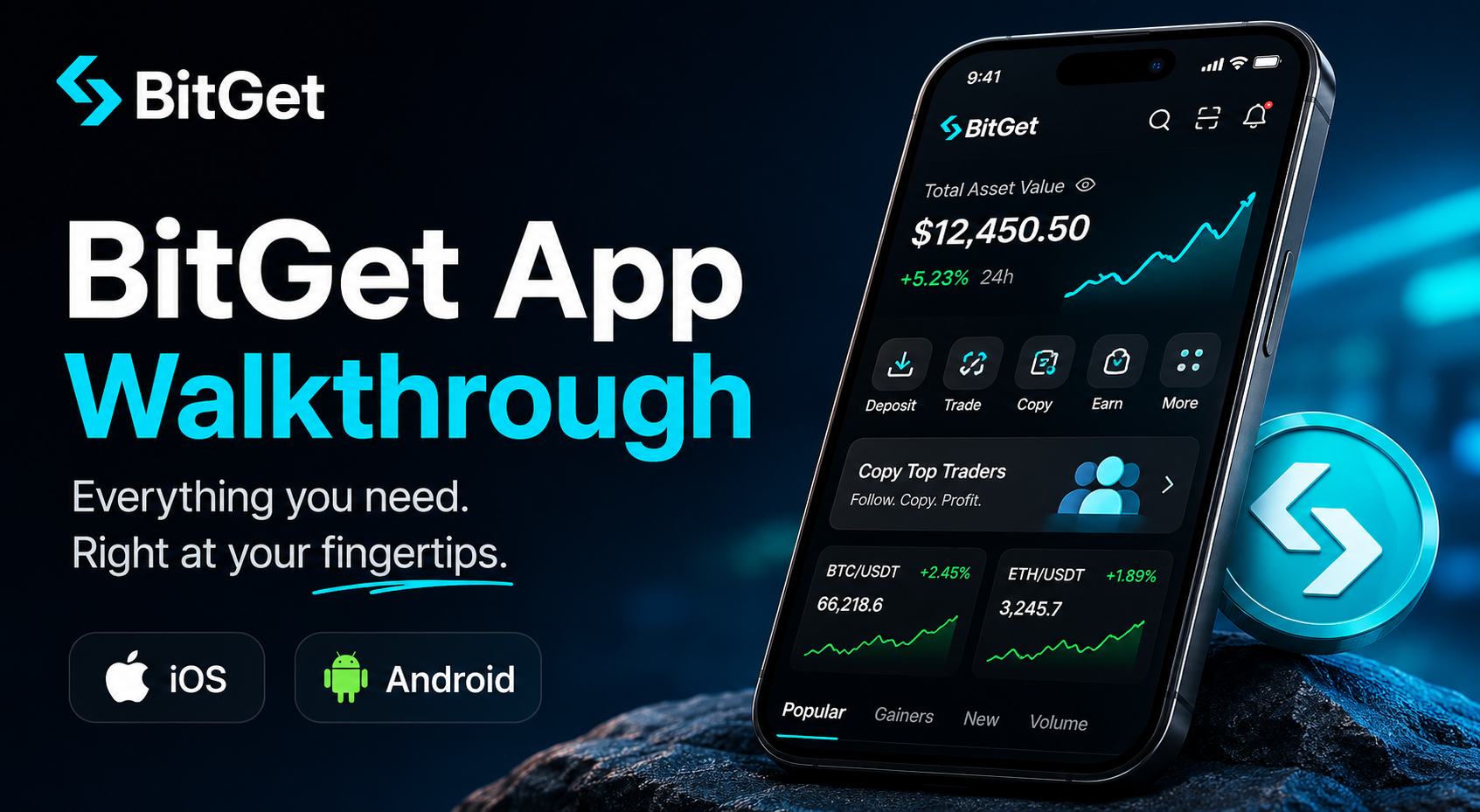
The first thing I did when I joined BitGet was use the web platform. The second thing was install the app and realise I’d been making things harder for myself. Most active trading days now I open the app five times to check positions, set alerts, or place a quick spot trade. The desktop session is for deeper analysis — but the app handles 80% of what I actually do.
If you’ve signed up to BitGet and haven’t installed the app yet, you’re missing a chunk of the product. This is the full tour.
Short answer: The BitGet app (iOS and Android) has feature parity with the web platform — spot, futures, copy trading, bots, earn, card, wallet, and KYC are all functional on mobile. The UI is cleaner than the web platform for beginners, but the leverage tab makes fat-fingering futures positions easier than it should be. Install it, enable 2FA + biometric login immediately, disable price alerts you don’t need.
Open a BitGet account → (referral link)
Key takeaways
- iOS and Android apps both have feature parity with the BitGet web platform.
- The mobile UI is cleaner than the web platform for first-time users.
- The five main tabs are Markets, Trade, Bots/Copy, Earn, and Assets.
- Enable biometric login + 2FA immediately. The default is just password.
- Mobile is fine for spot trading; serious futures and bot setup belongs on desktop.
Installing the BitGet app
iOS. Open the App Store, search “Bitget”, install. Should be a one-tap process. The app is published by Bitget Limited — verify the publisher before installing to avoid lookalike fakes.
Android. Two paths.
– Play Store: same as iOS, search and install.
– APK download from bitget.com: if your region or device doesn’t have Play Store access, BitGet hosts the APK directly. Only download from the official BitGet domain. If you’re going this route, crypto scams guide covers the fake APK risks worth being aware of.
A note on regional availability: BitGet is not available to US residents, and the app respects that. If you’re in a region where BitGet is restricted, the app won’t let you sign in even after install.
First-time login and 2FA
Out of the box, BitGet authenticates you with email + password. That’s not enough. Before you fund the account, walk through this checklist:
- Enable 2FA. Settings → Security → Authenticator. Use Authy or Google Authenticator, not SMS (SMS gets sim-swapped). Setup detail in 2FA for crypto.
- Enable biometric login (Face ID / fingerprint). Settings → Security → Biometric Lock.
- Set up a withdrawal whitelist — even if you haven’t withdrawn yet. Pre-add your Ledger address now so you can’t be tricked into approving a malicious one in a panic later.
- Enable anti-phishing code. Settings → Security → Anti-phishing. Every email BitGet sends you will include this code. If an email arrives without it, it’s a phishing attempt.
- Review login devices. Settings → Security → Login Records. Sign out anything you don’t recognise.
That’s 10 minutes and it stops 90% of the account-takeover attempts that hit retail crypto users. The other 10% is what NordVPN on public networks defends against — soft mention: I use NordVPN (affiliate) on any device I trade from, since coffee-shop and airport WiFi are where session hijack attacks happen.
App layout overview (the 5 main tabs)
The bottom navigation has five tabs. From left to right:
1. Markets. Real-time prices, watchlists, market overviews. Customisable. The default sort is by trading volume — usually fine, but you can filter by trending, gainers, losers, or your watchlist.
2. Trade. Spot and futures tabs side by side. Default landing pair is BTC/USDT. The order entry interface is compact but full-featured.
3. Bots / Copy. This tab is labelled differently depending on app version — sometimes “Bots & Copy”, sometimes split. All bot setup (spot grid, futures grid, DCA, AI variants, Bot Copy Trading) lives here. The full bot ecosystem covered in crypto trading bots guide and BitGet spot grid bot.
4. Earn. All Earn products: Savings, Launchpool, PoolX, Shark Fin, Dual Investment, Smart Trend. Same range as the web platform but cleaner on mobile. Details in BitGet earn products.
5. Assets. Your portfolio. Spot + futures + earn + bot balances aggregated. Tap any asset for its history. The deposit/withdraw flows live here too.
The top-right corner has a hamburger menu with everything that doesn’t fit in the tabs: KYC, support, settings, security, referrals.
Spot trading on mobile (faster than desktop?)
For routine spot trades — placing a limit order on BTC/USDT, setting a stop, checking a fill — mobile is faster than desktop. The order entry slides up from the bottom and you can place a trade in under 10 seconds.
What mobile is bad for:
– Drawing analysis on charts (the touch interface is fiddly compared to a mouse)
– Comparing multiple pairs side by side
– Managing complex multi-leg positions
For full-strategy spot trading, BitGet spot trading guide covers the desktop walkthrough. For quick fills, mobile wins.
Futures on mobile (the leverage warning)
Futures works on mobile, but I’d push back gently on using it.
The reason: the leverage slider is right there. One sloppy thumb and you’ve gone from 5x to 75x without realising. Combine that with the smaller screen making it harder to spot a positioning error, and mobile futures is a high-leverage fat-finger risk.
If you must trade futures on mobile:
– Lock max leverage in settings to the highest level you’d ever actually use (Settings → Trading → Default Leverage)
– Always use a stop loss when entering a position
– Triple-check direction (long vs short) before confirming
– Read BitGet futures USDT-M and BitGet leverage explained before opening any futures position, mobile or otherwise
Copy trading on mobile
Copy trading actually works great on mobile. Browse the leaderboard, filter by drawdown and longevity (the filters I cover in best BitGet copy traders), tap to copy, set allocation. The mobile flow is cleaner than the desktop UI for browsing.
What I’d still do on desktop: the deeper trader profile analysis. Tap into a trader’s full performance history on mobile and the smaller screen makes it harder to spot patterns. Quick screening on mobile, deep evaluation on desktop.
BitGet copy trading covers the full process.
Bots from the app
Deploying bots from the app works. Configuring bots from the app is harder than from desktop. The AI Spot Grid is fine to deploy on mobile — pick a pair, pick a preset, deploy. Manual spot grid configuration with custom range and grid count is fiddly on a phone screen.
My approach: configure new bots on desktop, monitor and pause them on mobile. The mobile bot management view (active bots, returns, fills) is clean and well laid out.
Earn from the app
Earn products work perfectly on mobile. The Savings → Launchpool → PoolX rotation I run takes 30 seconds in the app every time a new pool launches. Notifications can be enabled per product type so you don’t miss a Launchpool you wanted to enter.
The one thing I’d recommend doing on desktop: reading the terms before you commit to anything Dual Investment, Shark Fin, or structured-product-based. Those products have lock periods and conditional payouts you want to read carefully. The mobile version compresses the disclosure text in a way that’s easy to skim past.
Walkthrough of each Earn product in BitGet earn products, BitGet savings, BitGet launchpool, BitGet dual investment.
Notifications worth enabling
The notification settings are buried in Settings → Notifications. Worth a tour:
- Order fills: on. You want to know when a limit order executes.
- Liquidation alerts (futures): on. Mandatory if you trade futures at all.
- Price alerts (custom): on, but limit yourself to 3–5 alerts on key levels. More than that and you’ll start ignoring them.
- Marketing notifications: off. They’re noisy.
- Launchpool launches: on if you participate in Earn. Off otherwise.
- Login alerts: on. You want to know if someone’s accessing your account.
Security settings to lock down immediately
A second pass beyond the 2FA + biometric basics:
- Withdrawal address whitelist — only whitelisted addresses can receive withdrawals
- API key permissions — if you’ve created any API keys, audit them and remove the withdrawal scope unless you actually need it
- Device login alerts — get a notification every time a new device signs in
- Anti-phishing code — covered above
- Session timeout — set the app to lock after X minutes of inactivity
Detail on broader self-custody protections in how to store crypto safely and the recovery playbook if something does go wrong in wallet hacked recovery.
Mobile vs desktop — which I use when
A quick honesty check on what I actually do.
Mobile is my default for: checking prices, reviewing positions, placing routine spot trades, joining Launchpools, monitoring active bots, copying a vetted trader, setting price alerts.
Desktop is my default for: chart analysis with drawing tools, configuring new bots from scratch, evaluating copy traders in depth, reading Earn product terms, executing larger orders where slippage matters, doing tax export work.
Roughly 80% of my BitGet sessions are mobile. The 20% desktop sessions are where the real decisions get made.
Get the app and start trading
Open an account on the web first, complete KYC, then install the mobile app and sign in with the same credentials.
Referral link.
Frequently asked questions
Is the BitGet app safe?
The app itself is safe to install from the App Store, Play Store, or the official bitget.com APK page. The risks are external — phishing emails, public WiFi attacks, weak passwords. The 2FA + biometric + anti-phishing-code setup covers most attack vectors.
Can I do everything on the BitGet app that I can on the web?
Yes, feature parity is complete: spot, futures, copy trading, bots, Earn, card, wallet, KYC, withdrawals. The desktop version is better for analysis but functionally everything works on mobile.
How do I download the BitGet APK safely?
Only from the official bitget.com website, never from third-party APK aggregators. Verify the URL before downloading. Detail on safe download practice in crypto scams guide.
Does the BitGet app support biometric login?
Yes. Settings → Security → Biometric Lock. Enable Face ID (iOS) or fingerprint (Android). Highly recommended.
Can I trade futures on the BitGet app?
Yes, but be careful — the leverage slider is mobile-screen-sized and fat-fingering a position is easy. Lock your max leverage in settings if you’re going to trade futures from mobile.
Does the app work in restricted regions?
If BitGet doesn’t operate in your country (US, etc), the app will detect that and prevent sign-in. Don’t try to bypass with a VPN — it violates terms and can result in account freeze.
Will my BitGet account sync between mobile and web?
Yes. Same account, same balance, same history. Place an order on mobile and it appears in the web platform instantly, and vice versa.
Open an account first
Sign up on web, complete KYC, then sign into the mobile app with the same credentials.
Affiliate link.
Related posts
- BitGet Review: The Crypto Exchange I Actually Use
- BitGet Spot Trading: A Complete Guide
- 2FA for Crypto: Authy vs Google Authenticator vs YubiKey