If you took one piece of advice from this site, make it this one: turn off SMS 2FA on every exchange account you own, and turn it off tonight.
I’ve watched two people lose six-figure accounts to SIM swap attacks where the only “security” between the attacker and the funds was a text-message code. The fix is a free download. This post covers which app to download, which hardware key to add on top, and why that combination matters. Some links here are affiliate. I’ll flag them.
Short answer: The best 2FA for crypto is a TOTP authenticator app (Google Authenticator, Authy, or Microsoft Authenticator) on every exchange that supports it, with a YubiKey hardware key added on top for the accounts that allow it. SMS 2FA is the worst option — it leaves you exposed to SIM swap attacks, which the FBI’s IC3 unit has flagged as one of the biggest sources of crypto theft. Setup takes about 10 minutes per account. The combination of app-based 2FA and a hardware key blocks roughly 99% of account takeover attacks.
Order a Ledger for cold storage → (affiliate)
Key takeaways
- SMS 2FA can be bypassed via SIM swap — your mobile carrier ports your number to a SIM the attacker controls. The FBI has flagged SIM swap as one of the highest-loss crypto fraud vectors.
- TOTP apps (Authy, Google Authenticator, Microsoft Authenticator) generate codes locally — there’s no SMS to intercept.
- YubiKey adds a physical second factor that has to be plugged into your device or tapped on your phone. Phishing-resistant in a way no app is.
- Backup codes are mandatory — losing your phone without backup codes can lock you out permanently.
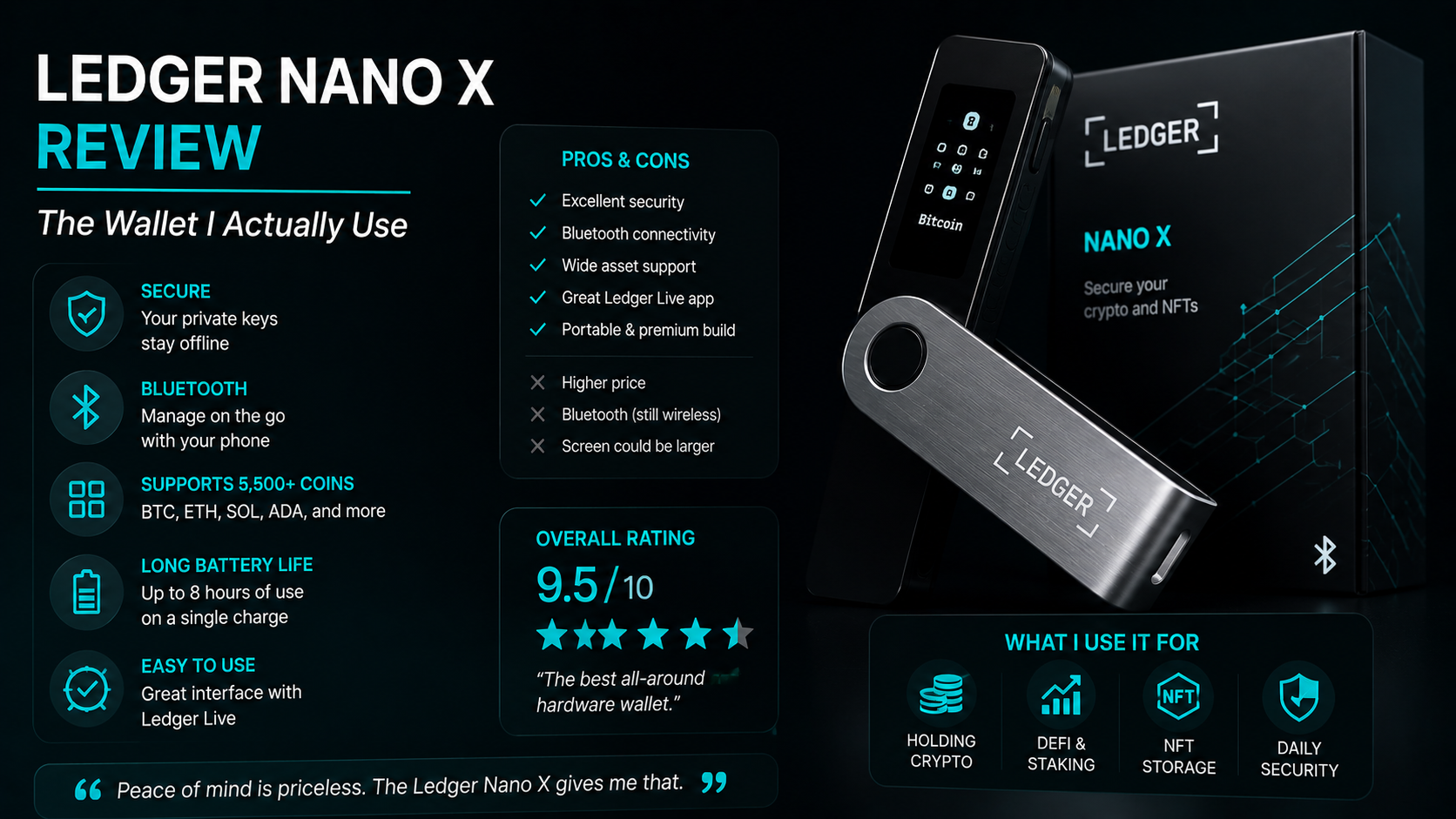
- The setup I use: Authy on phone + YubiKey on the exchange account that holds my trading float + Ledger Nano X for long-term storage.
Why 2FA matters for crypto
A normal bank account has multiple lines of defence: fraud monitoring, transaction reversal, customer service, account freezes, government insurance. If someone takes over your bank account, the bank takes the hit and you get your money back.
A crypto exchange has none of that. Once an attacker is in, they have minutes to enable withdrawals, drain the balance, and disappear. The transaction is on-chain, irreversible, and the destination is a wallet the exchange can’t freeze.
2FA is the difference between a stolen password being a problem and a stolen password being a catastrophe. The right 2FA setup means even with your login credentials, an attacker can’t get in without the physical thing on or near your body.
The wrong 2FA setup — specifically SMS — means a phone call to your carrier is enough. That’s the whole gap.
SMS 2FA — why you should never use it (sim swap explained)
A SIM swap attack works like this.
- The attacker collects enough personal info on you to pass a carrier’s identity check. Date of birth, address, last four digits of your social — most of this is in old data breaches.
- They call your mobile carrier pretending to be you. They claim they’ve lost their phone and need to port the number to a new SIM.
- The carrier — sometimes after a token check, sometimes not — moves your number to a SIM the attacker now controls.
- Your phone goes dark. Theirs starts receiving every SMS sent to your number.
- They go to your exchange login page, click “Forgot password”, get the SMS reset code, change the password, log in.
- They request a withdrawal. The exchange sends a “confirm withdrawal” SMS. They confirm it. The crypto leaves.
Total time: often under 30 minutes.
Real cases
Reuters has covered multiple high-profile SIM swap cases, including one where a Bitcoin Magazine reporter lost large holdings to this exact pattern. The FBI’s IC3 reported hundreds of millions in losses from SIM swap-related crypto theft across recent years.
A US class-action lawsuit against AT&T documented dozens of victims losing 7-figure sums. The carriers have been improving their port-out checks, but it’s still happening.
The defence
- Disable SMS 2FA on every exchange account. Replace it with an authenticator app.
- Set a port-out PIN with your carrier. Phone them and explicitly ask for one.
- Don’t use your real phone number on any crypto exchange. Use a number that isn’t publicly linked to you.
- Use a dedicated email for crypto that isn’t tied to your phone number publicly.
The single text message you don’t want to receive is the one telling you your number has been ported. By then, the clock has started.
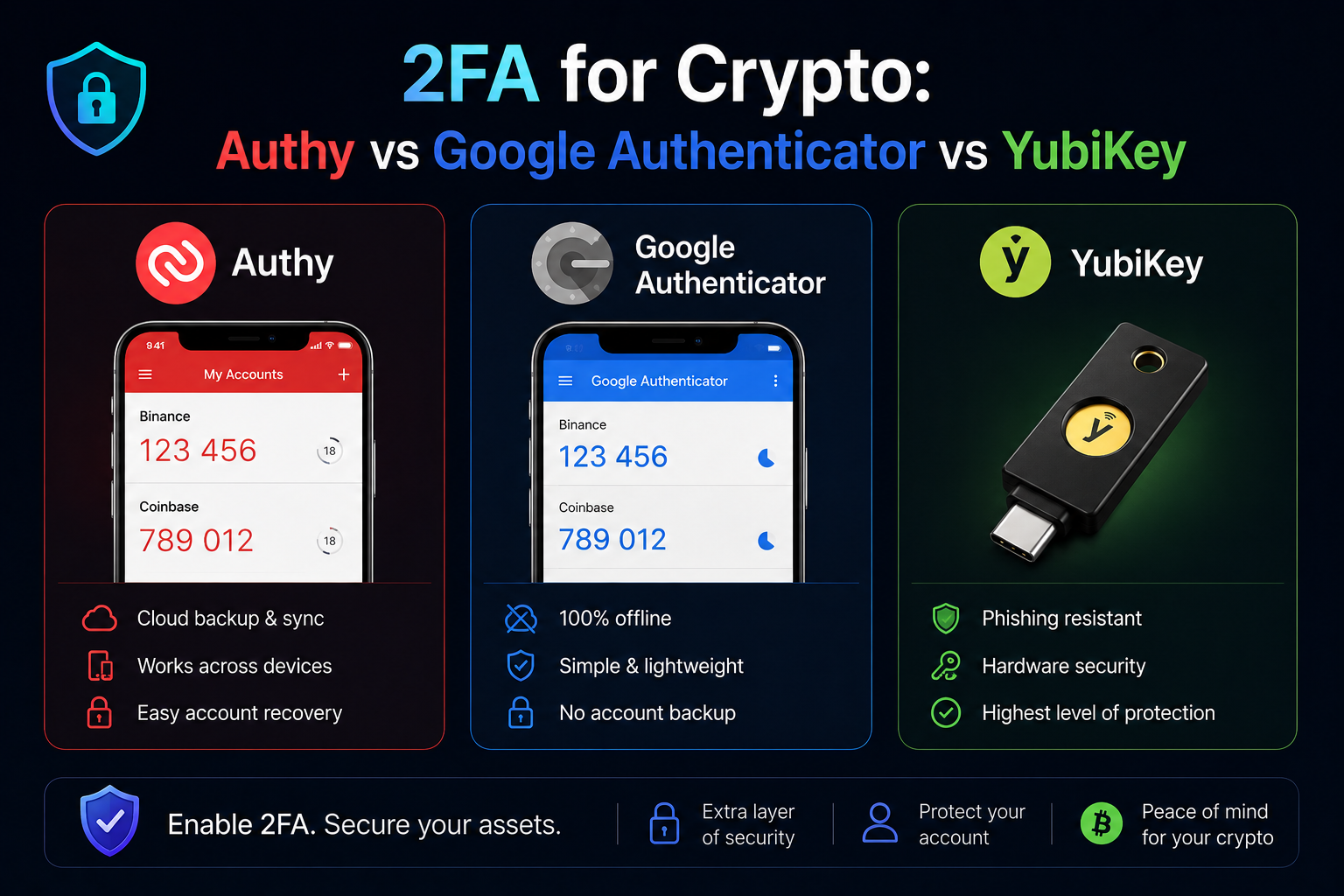
Authy vs Google Authenticator vs Microsoft Authenticator
The three main TOTP (time-based one-time password) apps. They all do the same job: scan a QR code from the exchange, the app generates a 6-digit code that rotates every 30 seconds, you enter that code at login. Codes are generated locally on your phone — no SMS, nothing to intercept.
The differences are in how they handle backup, sync, and multi-device support.
| Feature | Authy | Google Authenticator | Microsoft Authenticator |
|---|---|---|---|
| Encrypted cloud backup | Yes (optional) | Yes (added 2023) | Yes |
| Multi-device sync | Yes | Yes | Yes |
| Desktop app | Yes (Windows, Mac, Linux) | No | No |
| Biometric lock on app | Yes | Yes | Yes |
| Push notification 2FA | No | No | Yes (Microsoft accounts) |
| Closed-source | Yes | Yes | Yes |
| Recommended for crypto | Yes | Yes | OK |
Authy
My pick for years. Native desktop app meant I could log in on my laptop without unlocking my phone. Encrypted cloud backup meant a lost phone wasn’t a permanent lockout.
The catch: Authy is owned by Twilio. The desktop app was deprecated in early 2024. The phone apps still work fine and the backup is solid, but the cross-device convenience took a step back.
Google Authenticator
The default for a lot of people because it’s pre-installed on Android. Cloud sync was added in 2023, which fixed the biggest historical complaint (lose phone, lose codes). Simple UI, no frills.
The trade-off: if someone gets into your Google account, they can sync your authenticator codes to a new device. Belt-and-braces protection means a strong Google password, app-based 2FA on the Google account itself, and a recovery key.
Microsoft Authenticator
Strong if you’re already in the Microsoft ecosystem. Push notifications for Microsoft accounts, biometric unlock, encrypted backup. Works fine for crypto exchanges that support standard TOTP (most do).
What I actually do
Authy for the long-running setup, Google Authenticator as a backup on a second device. Both with the cloud backup enabled and protected by a strong, unique password I’m never going to type into a web form.
The single most important rule: have the setup on at least two devices, or have the backup codes stored physically. A lost phone with no backup is a permanently lost account.
Hardware keys: YubiKey explained
A YubiKey is a physical security key, about the size of a USB stick, that acts as a phishing-resistant second factor. You plug it into a USB port, or tap it against your phone via NFC, and the login completes.
Why it’s better than even a TOTP app: TOTP codes can be phished. A fake exchange site can prompt you for your TOTP code, capture it, and use it within the 30-second window to log in to the real site as you. A YubiKey can’t be phished this way — it cryptographically verifies the domain you’re logging into, and refuses to authenticate to a fake one.
YubiKey 5 NFC (the one I use)
USB-A and NFC. Works with desktop browsers and with phones via tap. Roughly £45. Lasts forever (no battery, basically indestructible).
The YubiKey 5C NFC is the USB-C version. Same price, same features.
Pros
- Phishing-resistant — no fake exchange page can capture the second factor
- Physical possession required — an attacker on the other side of the world can’t authenticate
- Works across most major exchanges (BitGet, Binance, Coinbase, Kraken, Bybit) plus most major services (Google, Microsoft, GitHub)
- Doesn’t run out of battery, doesn’t break, doesn’t need updates
Cons
- You can lose it physically. Always buy two and register both — one as primary, one stored at home as backup.
- Smaller exchanges don’t always support hardware keys yet. Check first.
- Not free.
The investment versus the protection ratio is enormous. Two YubiKeys cost about £90. They protect every account they’re registered to from the entire category of credential-phishing attacks.
Setting up TOTP on BitGet (step by step)
This is the walkthrough for an authenticator app, using BitGet as the example. The same flow works on Binance, Bybit, Coinbase, Kraken — the menu names differ but the steps don’t.
- Log in to your BitGet account (referral link).
- Click your profile icon (top right) → Security Settings.
- Find Google Authenticator (the label is generic — it works with Authy, Microsoft Authenticator, and any standard TOTP app).
- Click Bind.
- A QR code appears. Below it is a long text key (the “secret”). Copy the text key to a secure note. This is your manual backup — if you lose the phone, you can re-enrol the same code on a new device.
- Open Authy (or whichever app). Tap the + button. Select “Scan QR code”. Point the camera at the screen.
- The app shows a new 6-digit code rotating every 30 seconds.
- Back on BitGet, enter the 6-digit code in the verification field. Click confirm.
- BitGet will then prompt for an SMS or email code to confirm the binding.
- Once confirmed, disable the SMS 2FA option if it’s still enabled. Leave only the authenticator app.
Now every login, every withdrawal, every API key change requires a code from the authenticator app — generated locally on your device, immune to SIM swap, harder to phish than SMS.
Full BitGet security walkthrough is here.
Setting up YubiKey on exchanges that support it
The flow is similar for hardware keys. BitGet, Binance, Coinbase, Kraken, and Bybit all support hardware keys via FIDO2 / WebAuthn.
- Log in to your exchange. Go to Security Settings.
- Find the option labelled “Security Key” or “Hardware Key” or “FIDO2”.
- Click Add / Bind.
- The browser will prompt you to insert your YubiKey.
- Insert the YubiKey into a USB port. Touch the gold contact when it flashes.
- The exchange confirms the key is registered.
- Add your backup YubiKey using the same process.
Now logins require touching the YubiKey. An attacker with your password and even your TOTP code can’t get in without physical possession of the key.
The setup hierarchy
For a major exchange account:
- Strong unique password (in a password manager)
- App-based TOTP (Authy or Google Authenticator)
- YubiKey as the primary login method
- Backup YubiKey stored at a separate physical location
- Withdrawal whitelist set to your own addresses only
- Anti-phishing code enabled (BitGet, Binance, and others have this — it adds a known phrase to legitimate emails so you can spot phishing)
That stack is what protects an actively-traded exchange account.
Backup codes (don’t lose these)
Every authenticator app and every YubiKey-secured account also gives you backup codes (sometimes called recovery codes). These are 8-10 single-use codes that let you log in if you lose access to your 2FA device.
Where to store them
- Printed on paper, in a physical safe or a sealed envelope
- Engraved on a metal backup plate (same kind people use for seed phrases)
- A password manager only if you treat the password manager as a critical security boundary (strong unique master password, app-based 2FA on the password manager itself)
Where not to store them
- A note on your phone
- A screenshot in your camera roll
- Cloud document (Google Drive, Dropbox)
- A text file on your desktop
Lose all of them and what happens
You lose access to the account. Depending on the exchange, you may go through a multi-day identity verification process — video call, ID re-upload, security questions — to regain access. Some accounts take weeks to recover. Some are unrecoverable.
The backup codes are the recovery seed of your exchange account. Treat them with the same paranoia as a wallet seed.
The setup I use across crypto accounts
Here’s the honest stack I run. Not advice, just transparency.
Long-term holdings (the cold storage layer)
- Ledger Nano X (affiliate) for the majority of my portfolio
- Seed phrase on metal, geographically separated from the device
- The device never connects to a public network without a VPN
Full Ledger Nano X review here.
Active trading account (BitGet)
- Password from a password manager, unique to this account
- Authy TOTP for routine logins
- YubiKey 5 NFC as the primary login method when available
- Backup YubiKey at a different physical location
- Withdrawal whitelist enabled — withdrawals only allowed to my pre-approved addresses
- Anti-phishing code enabled on emails
Email for crypto
- Dedicated email, used only for exchanges and wallets
- Strong unique password
- App-based 2FA on the email itself (often the most-forgotten step)
- No autoforward rules
Phone number
- Port-out PIN set with carrier
- Not used on any exchange (I use a dedicated VoIP number for any SMS that still requires one)
- Not publicly listed
That’s the stack. It’s the single biggest reason none of my accounts have been touched in six years. There’s no clever bit. It’s just stacking layers that each block one category of attack.
2FA + NordVPN combo on public WiFi
2FA stops attackers who have your password. It doesn’t stop attackers who control the network you’re on.
When you log in on a coffee shop WiFi, the local router can:
- Redirect you to a fake exchange site that looks identical (DNS hijacking)
- Inject scripts into pages over HTTP
- Capture packet metadata even on HTTPS
- Watch for clipboard activity if you sync from a connected device
A VPN encrypts your traffic before it hits the local network. The router can’t redirect you, can’t substitute fake pages, can’t see your destinations.
I use NordVPN (affiliate) on every device that touches crypto. It runs in the background, has a kill switch (if the VPN drops, the connection drops too), and works on Mac, Windows, iOS, Android, and Linux. Costs about £3 a month.
Pair the VPN with hardware 2FA and you’ve blocked the two main categories of remote attack:
- Network attacks (DNS hijacking, fake pages, packet inspection) — blocked by VPN
- Credential attacks (phishing, SIM swap, password reuse) — blocked by app/hardware 2FA
The crypto scams guide covers the social engineering attacks the VPN and 2FA don’t stop.
Common 2FA mistakes
The things people get wrong, in the order I see them most.
Using SMS 2FA on the highest-value account
The account with the most money on it is the one that needs the strongest 2FA. SMS is the weakest. People often add app-based 2FA to “less important” accounts and leave SMS on the main one because they don’t want to risk being locked out. That risk model is backwards.
One device, no backup codes
You lose the phone, the codes are gone, the accounts are gone. Always have backup codes saved physically, and ideally have the authenticator app installed on a second device with the same codes.
Storing backup codes in a screenshot
Camera rolls get backed up to cloud accounts. Cloud accounts get compromised. Backup codes need to be paper, metal, or a properly-secured password manager — nothing in between.
Using the same authenticator account for crypto and email
The 2FA app secures multiple accounts, sure. But the app itself sits behind biometrics on a device. If that device is compromised, all the 2FA secrets it holds are exposed. Consider a dedicated device (an old phone, no SIM, WiFi only) for the highest-value 2FA codes.
Never rotating the secret
If you suspect any compromise of any device the authenticator runs on, regenerate the 2FA secret on every account from scratch. The same goes for hardware keys — if you lose one or even misplace it for a day, deregister it from every account and re-enrol a new one.
Not setting a withdrawal whitelist
2FA stops the login. The withdrawal whitelist is the secondary defence: even if an attacker is logged in, they can only withdraw to addresses you’ve pre-approved (often after a 24-48 hour delay). Set it on every exchange that supports it.
The full security stack starts with cold storage.
A Ledger keeps the bulk of your portfolio offline. 2FA protects the exchange account you trade from. Both are cheap insurance against the patterns that drain six-figure accounts.
Affiliate link.
FAQ
What is the best 2FA app for crypto?
Authy or Google Authenticator are both solid. Both generate codes locally, both support encrypted backup. I use Authy primarily and Google Authenticator as a backup. Avoid SMS 2FA for anything crypto-related.
Is Google Authenticator safe for crypto?
Yes. Codes are generated locally on your device — no SMS to intercept, no server to compromise. The 2023 cloud backup feature means losing your phone no longer means losing the codes. Pair it with a strong Google account password and 2FA on Google itself.
What’s better, Authy or Google Authenticator?
Authy has stronger encrypted cloud backup and used to have a desktop app (deprecated in 2024). Google Authenticator is simpler and ships free on Android. Both are fine. The difference is workflow, not security.
Do I need a YubiKey for crypto?
Not strictly, but it’s the strongest 2FA available. A YubiKey blocks phishing attacks that can still defeat TOTP codes. For any exchange account holding more than you’d want to lose, a YubiKey pair is worth the £90.
Can a YubiKey be hacked?
The cryptographic protocol (FIDO2/WebAuthn) is not currently breakable. A YubiKey can be physically stolen. The defence is registering a backup key — if one is lost or stolen, you deregister it from every account.
What happens if I lose my phone with the authenticator app?
If you have backup codes saved physically: use them to log in, then re-enrol a new authenticator. If you have the authenticator on a second device: use that. If neither: go through the exchange’s account recovery process, which is slow and not guaranteed.
Can I use the same authenticator app for multiple exchanges?
Yes. Authy and Google Authenticator handle dozens of accounts each. Each exchange shows up as a separate entry generating its own rotating code.
Should I use 2FA on my crypto wallet too?
Self-custody wallets (MetaMask, Ledger, Trezor) don’t use 2FA in the traditional sense — the seed phrase or hardware device is the authentication. 2FA matters for exchange accounts and any cloud-based wallet service.
Final word
The cheapest, fastest security upgrade in crypto is replacing SMS 2FA with an authenticator app. It takes ten minutes. It blocks the single most common credential attack on retail crypto accounts.
The next upgrade is adding a YubiKey to the highest-value account. That blocks phishing attacks that can still defeat TOTP codes.
The full stack — Ledger for cold storage, Authy for routine 2FA, YubiKey for the main exchange, NordVPN on public WiFi, dedicated email for crypto, port-out PIN with the carrier — costs less than £200 all-in and runs in the background forever.
If I were starting again today, this is the order I’d do it in: switch off SMS 2FA tonight, install Authy this evening, order a Ledger and a pair of YubiKeys this week. Three weeks and you’ve got the same stack I’ve run for years.
Right — over to you.
Related posts